Upgrade
When installing GameAP, the gameapctl utility will be installed,
which allows you to manage the panel environment, including updates.
This page is about upgrading within the fourth version. Moving from GameAP 3 is described separately: Upgrade from v3 to v4.
Back up the database before upgrading: gameapctl does not save it, and an upgrade may change
the schema.
Mandatory two-factor authentication for administrators.
In GameAP 4 the requirement is enabled by default. After the upgrade, administrators without 2FA will see a reminder, and after 30 days logging in will no longer issue a full session until 2FA is enabled. The countdown for each administrator starts at their first login after the upgrade.
To keep the reminder but remove the lockout, set
AUTH_MFA_HARD_FAIL_DAYS=0inconfig.env. To disable the requirement entirely —AUTH_REQUIRE_MFA_FOR_ADMINS=false.Details and what to do if you lose access are on the Security page.
Upgrading to 4.5.0
Renamed configuration variables
Every plugin setting in config.env is now spelled with the PLUGINS_ prefix. 73 PLUGIN_*
variables were renamed to PLUGINS_* — PLUGIN_STORE_URL became PLUGINS_STORE_URL,
PLUGIN_SSH_ENABLED became PLUGINS_SSH_ENABLED, and so on — and the switches of the compiled
WebAssembly module cache, PLUGINS_CACHE_ENABLED / PLUGINS_CACHE_DIR, became
PLUGINS_RUNTIME_CACHE_ENABLED / PLUGINS_RUNTIME_CACHE_DIR. Three more variables lost the unit
in their name; the unit now goes into the value:
| Before 4.5.0 | In 4.5.0 | Default |
|---|---|---|
PLUGIN_HTTP_MAX_TIMEOUT_SECONDS |
PLUGINS_HTTP_MAX_TIMEOUT |
30s |
PLUGIN_NET_MAX_TIMEOUT_SECONDS |
PLUGINS_NET_MAX_TIMEOUT |
10s |
PLUGIN_NET_READ_BUFFER_BYTES |
PLUGINS_NET_READ_BUFFER |
64K |
Who renames the variables depends on how the panel was installed:
- gameapctl.
gameapctl panel upgraderewritesconfig.envitself and prints every change, for exampleconfig.env: PLUGIN_STORE_URL renamed to PLUGINS_STORE_URL. This requires gameapctl v0.33.0 or newer, so rungameapctl self-updatefirst. - Docker and manual installations. Rename the variables by hand.
The old names — PLUGIN_* and PLUGINS_CACHE_* alike — keep working for one release: at startup
the panel copies the value onto the new name and logs a warning naming the replacement:
environment variable is deprecated and will be removed in a future release. If both names are
set, the new one wins and the old one is ignored, also with a warning. The three variables with
a unit in the name are the exception: the panel no longer recognizes them and falls back to the
default, while gameapctl converts them along with the rest (30 → 30s).
The current list of variables is in the config.env Reference.
Logins and e-mail addresses are lowercased
On the first start of 4.5.0, migration 022 folds every login and e-mail address to lower case; from then on signing in is case-insensitive. The change cannot be undone.
If two accounts differed only in letter case, only one of them keeps the lower-case identifier —
the one that was already spelled that way, otherwise the one with the lowest id. The other keeps
its old spelling and can no longer sign in with it. The panel log records a warning,
Migration 022 could not fold a user identifier, with the column, user_id and
kept_by_user_id fields; the identifiers themselves are not logged. After the upgrade, check the
log and give such accounts a new login or e-mail address on the
Users, Roles, and Permissions page.
Duplicate user assignments are removed
Migration 023 removes duplicate rows from the server_user table, keeping one row per user and
server pair, and adds a unique key on (user_id, server_id). Duplicates left behind by older
versions disappear silently.
Migrations applied by 4.5.0
On top of 4.4.2, the upgrade applies migrations 015–023. Upgrading from 4.4.1 or older also runs
014, which on PostgreSQL widens the port columns of the dedicated_servers and servers tables
(on MySQL and SQLite it changes nothing).
| Migration | Change |
|---|---|
| 015 | Existing plugins are granted the files permission |
| 016 | Duplicate rows in plugin_storage are removed |
| 017 | Table plugin_secrets is created |
| 018 | Column metadata is added to dedicated_servers |
| 019 | Columns last_error and last_error_at are added to plugins |
| 020 | Existing plugins are granted manage_servers, node_commands and listen_events |
| 021 | Columns checksum and generation are added to plugins |
| 022 | Logins and e-mail addresses are folded to lower case |
| 023 | Duplicates in server_user are removed, a unique key on (user_id, server_id) is added |
Migrations 016, 022 and 023 delete or rewrite rows and cannot be rolled back — a database backup is mandatory. How migrations are applied is described on the Database page.
Multiple panel instances
Single-use SSO login tickets are stored in the panel cache. When several instances run behind a
load balancer, they must share one cache (CACHE_DRIVER=redis), otherwise a ticket issued by one
instance cannot be redeemed on another. See
Multiple Panel Instances.
GameAP Web/API
Linux
Update gameapctl first, then the panel:
gameapctl self-update
gameapctl panel upgrade
What gameapctl panel upgrade does:
- Downloads the release and stops the panel.
- Copies the current binary to
<binary>.backup(/usr/bin/gameap.backupon Linux,C:\gameap\web\gameap.exe.backupon Windows) and puts the new one in its place. - Brings
config.envin line with the new version: renames variables (see above) and removesGRPC_ENABLED,LEGACY_PATHandLEGACY_ENV_PATH, which the panel has not read since 4.3 — logged asconfig.env: GRPC_ENABLED removed, unused since GameAP v4.3. - Starts the panel and checks that it answers at
/api/health— up to 5 attempts, 2 seconds apart. - If the panel does not start or does not answer, the binary and
config.envare restored and the previous version is started again, so a failed upgrade leaves a working installation. The backup is deleted only after a successful check.
Windows
To update the panel on Windows,
you can execute the command where gameapctl is installed:
C:\path\to\gameapctl.exe panel upgrade
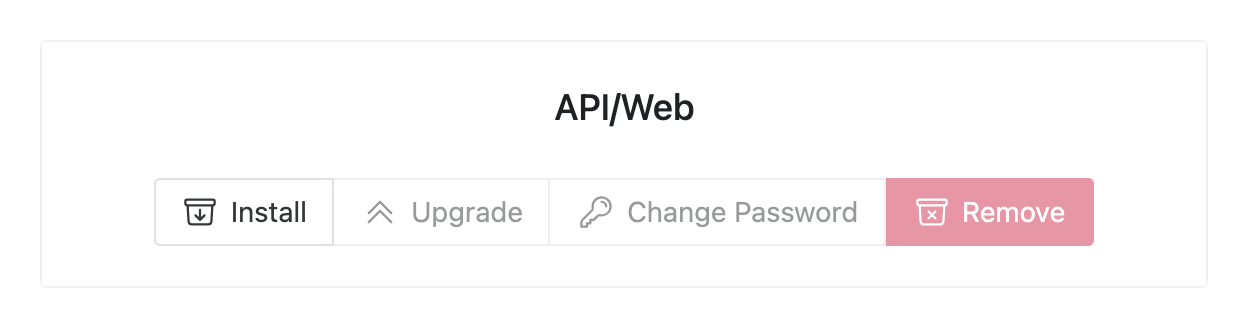
Or use the UI. Run gameapctl.exe, and in the browser window that opens,
click “Upgrade” in the Web/API section.
Upgrading to a specific version
By default the latest stable version is installed. To pick another one, specify it by tag:
gameapctl panel upgrade --version=4.5.0
- The
config.envmigration follows the target version: variables are renamed when the target is 4.5 or newer. When an installed 4.5+ panel is downgraded below 4.5, the renames are reverted —PLUGINS_*becomesPLUGIN_*again and the values are converted back (30s→30). --versioncannot be combined with--githubor--branch.--tois a deprecated synonym of--version.--scope=system|useroverrides the installation scope, which is normally detected from the install state.
Installations built from source
If the panel was installed with --github (for example, the development version),
gameapctl panel upgrade without flags rebuilds it from the same branch instead of downloading a
release: gameapctl remembers the source and the branch in the install state. Such a build needs
git, Node.js 24 and Go — gameapctl installs them itself (Go 1.26.1), and since GameAP 4.5.0 is
built with Go 1.27, the Go toolchain downloads the missing version on its own, so the machine
needs internet access. To switch back to release binaries, run
gameapctl panel upgrade --version=4.5.0.
Checking for new versions
Since 4.5.0 the panel reports available updates itself.
Home page. Administrators see a versions block: the running panel version with the “Latest stable” and “Latest beta” releases, and a GameAP Daemon indicator — “All up to date”, “:count of :total outdated” or “Failed to get information” — which opens the “GameAP Daemon versions” window listing every dedicated server. Other users do not see the block.

The panel queries the release sources from UPDATE_CHECK_URLS and caches the result for
UPDATE_CHECK_TTL (6 hours by default); a failed lookup is retried after 15 minutes.
UPDATE_CHECK_ENABLED=false disables the check, and the block then shows
“Update check is disabled”. The variables are described in the
config.env Reference.
API. GET /api/version returns the same data: the running version and build date, the latest
stable and beta releases of the panel and the daemon, and the update_available flag. The route
is available to administrators only and does not accept personal access tokens. Network errors do
not fail the request — the latest_* fields are simply left empty.
Command line.
gameap version(alsogameap -versionandgameap --version) printsGameAP <version>andBuild date: <date>. The binary is/usr/bin/gameapon Linux andC:\gameap\web\gameap.exeon Windows.gameap-daemon version— the GameAP Daemon version.gameapctl version— the gameapctl version and build date.
Updating GameAP Daemon
Dedicated servers whose daemon is marked as outdated in the “GameAP Daemon versions” window are updated the same way as any other.
Linux
To update the Daemon, execute the command:
gameapctl daemon upgrade
Windows
To update the GameAP Daemon on Windows, you can execute the command
where gameapctl is installed:
C:\path\to\gameapctl.exe daemon upgrade
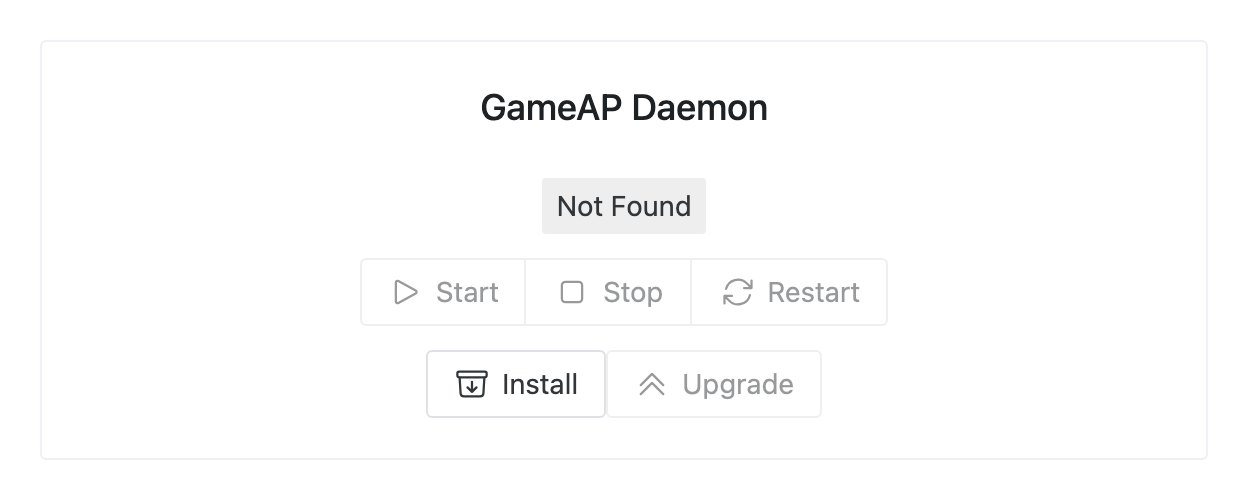
Or use the UI. Run gameapctl.exe, and in the browser window that opens,
click “Upgrade” in the GameAP Daemon section.