
Installation and management
The Plugins page
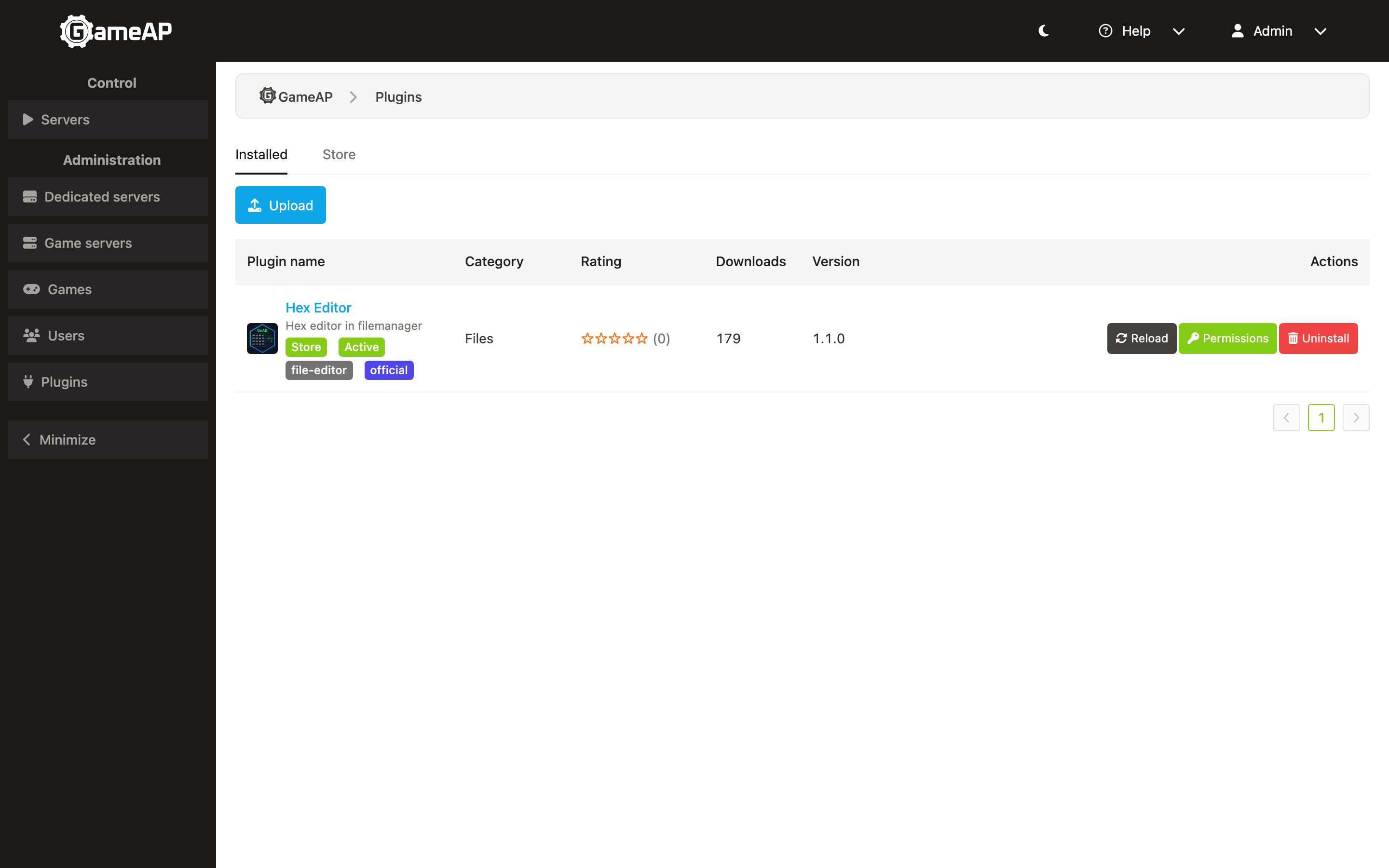
Plugin management is available to an administrator on the Administration → Plugins page. The page has two tabs:
- Installed — the list of plugins installed in the panel. The table shows the name, category, rating, download count, version and actions. Badges show the installation source (
file— Local file,store— Store), the status and whether an update is available. - Store — the list of plugins from the plugins.gameap.dev catalog with server-side pagination. Already installed plugins get a badge; paid ones get a subscription purchase button.
The status badge has four values: Active, Disabled, Error and Updating. For a plugin in the error status the text of the last error is shown under its name. On a panel with several instances, a plugin that this instance could not load additionally gets a Sync: retrying or Sync: failed badge with the local reason (see Multiple Panel Instances).
Actions in a plugin row:
- Reload — restarts the plugin (
POST /api/admin/plugins/{id}/reload): the running module is unloaded, the.wasmfile is loaded again and the outcome is recorded in the status (active, orerrorwith the reason). A pending automatic reload is cancelled. Not available while the plugin is updating. - Update — shown only when the catalog has a newer version.
- Permissions — opens the grants dialog (see Plugin permissions). The button is highlighted in orange when the plugin uses a capability it has not been granted.
- Uninstall — removes the plugin, with confirmation.
Installing from the catalog
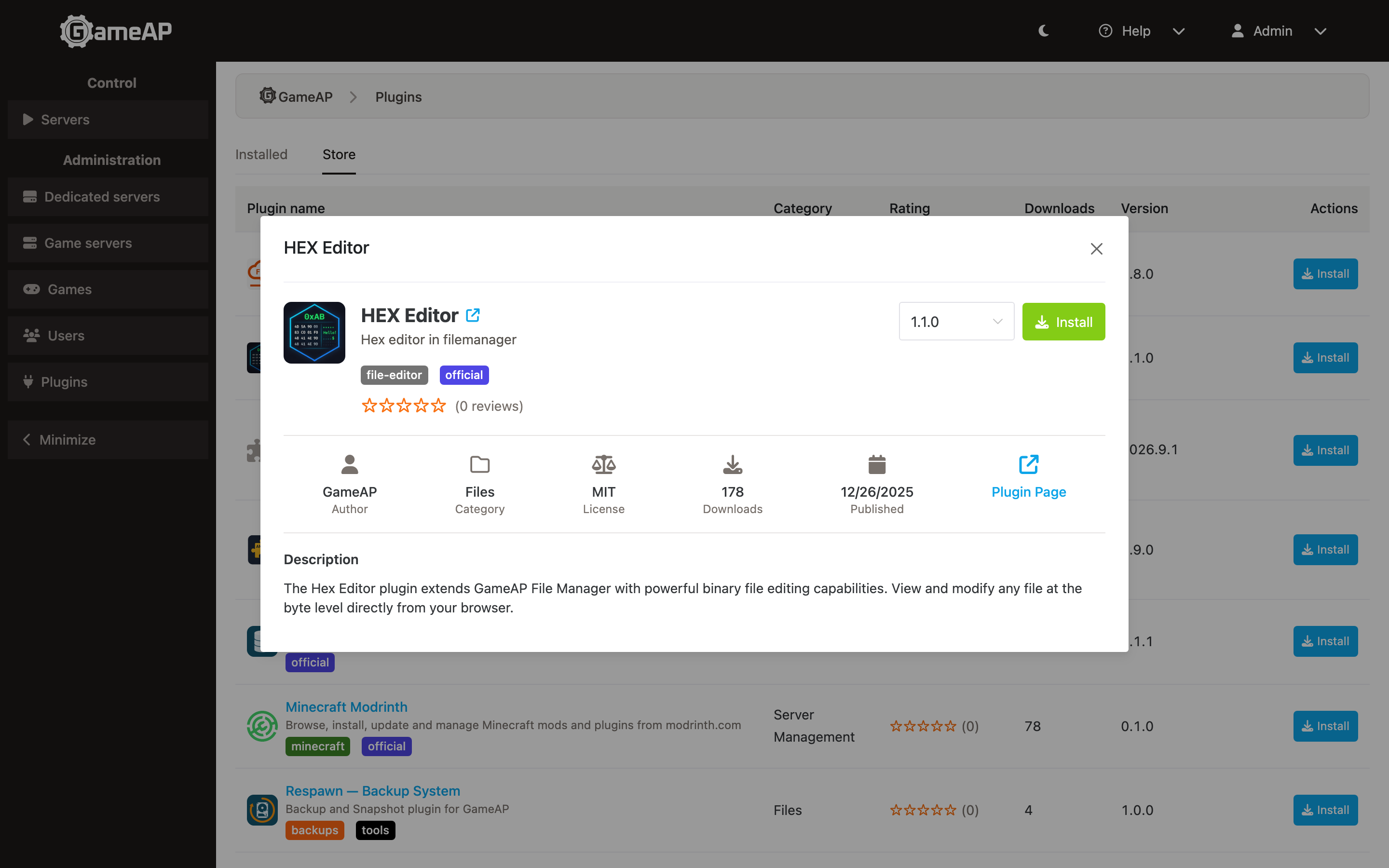
- On the Store tab, click the plugin name or the Install button — the plugin card opens with its description, author, license, tags, rating and version list.
- Select a version from the drop-down list (the latest one is offered by default) and click Install.
- The panel downloads the
.wasmfile, verifies its SHA-256 hash, writes it to theplugins/directory, loads the plugin and reloads the page (to refresh/plugins.jswith the plugin frontends).
For paid plugins (marked requires_subscription), a subscription purchase button is offered instead of installation. To let the panel download paid plugins, set the license key in the PLUGINS_STORE_LICENSE_KEY environment variable.
The plugin is granted the recognised permissions declared in its manifest (see Plugin permissions).
Installing from a file
- On the Installed tab, click the Upload button and select the plugin’s
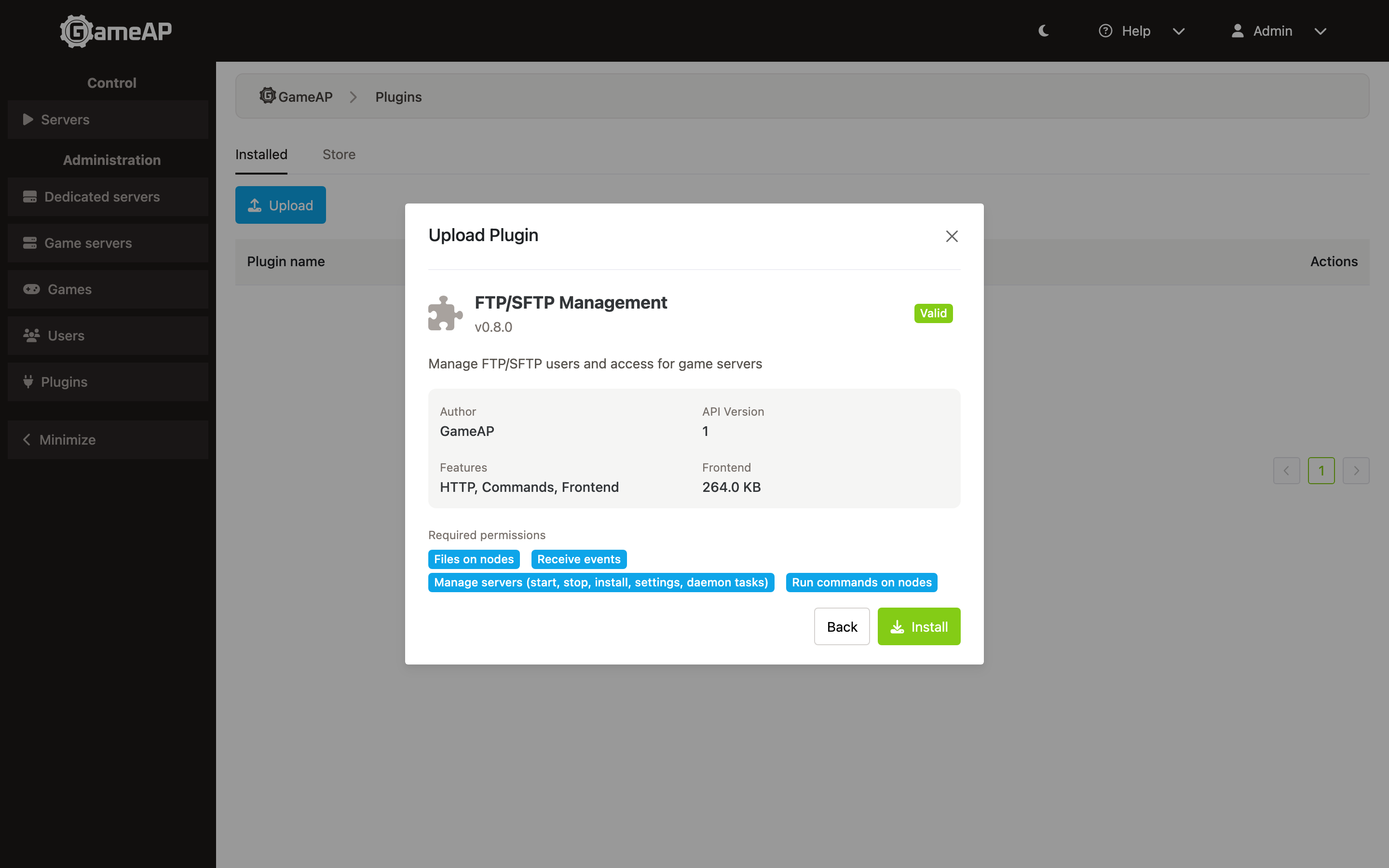
.wasmfile (no larger than 100 MB). - Click Validate: the panel performs a trial module load (a dry run, without installing —
POST /api/admin/plugins/upload/dry-run) and shows the plugin metadata: name, version, author, Plugin API version, the Features the build brings (HTTP routes, the game server abilities it registers, a frontend) together with the frontend bundle size, the permissions the plugin declares (Required permissions,required_permissions), a warning about the permissions the plugin uses but does not declare (undeclared_permissions), and a list of validation errors. - If the plugin is valid, click Install — the panel installs the plugin (
POST /api/admin/plugins/upload/install), grants it the recognised declared permissions and reloads the page.
If a plugin with the same id is already installed, the dialog says so and shows the version change, and the action button becomes Update: the upload replaces the plugin’s code (POST /api/admin/plugins/{id}/upload) while keeping its settings, stored data, secrets and granted permissions — see Updating and removing. An attempt to install a duplicate through /upload/install is refused with HTTP 409.
Uploading a local build over a plugin installed from the catalog turns it into a file plugin (its
sourcebecomesfile://…): the panel stops offering catalog updates for it, and other panel instances can no longer download its file.
Updating and removing
When a new version of a plugin installed from the catalog is released, an update badge appears in the table and the version column shows installed → latest. The update is performed with the Update button in the list or from the plugin card: the panel downloads the new version, verifies the hash, replaces the file and reloads the plugin. A plugin installed from a file is updated by uploading a new build (see Installing from a file).
An update — from the catalog or from a file — keeps the plugin’s stored data (gameap-storage), secrets (gameap-secrets), configuration and granted permissions. Grants are never widened by an update: if the new build needs permissions it has not been granted, the panel logs a warning when it loads the module, and with PLUGINS_PERMISSIONS_ENFORCE=true the calls behind them are refused until an operator grants them in the Permissions dialog.
Removal is performed with the Uninstall button, with confirmation (DELETE /api/admin/plugins/{id}). The panel unloads the plugin, deletes its gameap-storage entries and its encrypted secrets, then deletes the .wasm file, the plugin record and its scheduled tasks — a repeat installation starts without the plugin’s stored data, secrets and grants. Its gameap-cache entries are the exception: they are not deleted on uninstall and expire by TTL. If the plugin’s data cannot be deleted, the removal is aborted before the record is deleted, so the request can be retried.
After installation, updating and removal, the page reloads in order to refresh the plugin frontends (/plugins.js).
Enabling and disabling
The current version of the panel has no separate “enable/disable” action for a plugin in the interface: a plugin works from the moment it is installed until it is removed.
If a plugin stops responding (a call exceeds its timeout) or terminates its own module (for example, on a panic), the runtime closes the module and the panel records the error status with the reason. The plugin is then reloaded automatically with exponential backoff: the first attempt after PLUGINS_RECOVERY_INITIAL_DELAY (30s), each further one after twice the previous delay, up to PLUGINS_RECOVERY_MAX_DELAY (10m). After PLUGINS_RECOVERY_MAX_ATTEMPTS (5) consecutive failed attempts the plugin stays in the error status until an operator clicks Reload or the panel is restarted. A plugin that stayed healthy for longer than the maximum delay starts a fresh series of attempts. With PLUGINS_RECOVERY_ENABLED=false the status and the reason are still recorded, but the plugin is not reloaded automatically.
To disable all plugins completely, set the PLUGINS_DISABLED=true environment variable and restart the panel.
Plugin permissions
Privileged calls a plugin makes through the panel — managing servers, running commands and working with files on nodes, secrets, receiving events — are gated on the permissions granted to that plugin. The panel understands twelve permissions:
| Permission | Label in the dialog | What it covers |
|---|---|---|
manage_servers |
Manage servers (start, stop, install, settings, daemon tasks) | Server control, creating daemon tasks, saving and deleting servers and their settings |
manage_nodes |
Manage nodes | Modifying and deleting nodes, enrollment setup keys; reading node data is open to every plugin |
manage_games |
Manage games | Reserved for write operations that are not exposed to plugins yet |
manage_game_mods |
Manage game mods | Reserved for write operations that are not exposed to plugins yet |
manage_users |
Manage users | Reserved for write operations that are not exposed to plugins yet |
manage_rbac |
Manage roles and abilities | Creating roles, granting and revoking abilities |
files |
Files on nodes | Every file operation on nodes, including writes, chmod and archives; includes files_read |
files_read |
Read files on nodes | Read-only file operations on nodes and serving node files from plugin HTTP routes |
listen_events |
Receive events | Event subscriptions; a plugin without it is never called for events |
secrets |
Encrypted secrets | Reading, writing, listing and deleting the plugin’s encrypted secrets (gameap-secrets) |
node_commands |
Run commands on nodes | Running arbitrary commands on nodes; a cmdexec daemon task needs it in addition to manage_servers |
ssh |
Connect to hosts over SSH | SSH connections, command execution and file transfer to hosts named by the plugin; additionally requires PLUGINS_SSH_ENABLED=true |
A wider permission covers a narrower one: a plugin granted files may do everything files_read allows. Read-only calls (lists of servers, nodes, users, games, mods), outbound HTTP requests, the key-value storage, the cache, the scheduler and logging are available to every plugin without a grant.
A plugin declares the permissions it needs in its manifest (PluginInfo.required_permissions). Installing — from the catalog, from a file or through PLUGINS_AUTOLOAD — grants the recognised declared permissions: a name the panel does not know is dropped instead of being stored as a grant. The upload preview shows the set beforehand. Updating never widens the grants: with PLUGINS_PERMISSIONS_ENFORCE=true, a new build that needs more permissions has the calls behind them refused until an operator grants them.
Grants are edited in the Permissions dialog of the plugin row (PUT /api/admin/plugins/{id}/permissions). The dialog shows the permissions as checkboxes and warns when the plugin uses a capability it has not been granted; a permission the plugin neither declares nor uses cannot be granted. Changes take effect immediately after saving, on every panel instance. A refused call returns the error plugin permission <name> required to the plugin and is recorded in the audit log as access.denied; the plugin itself keeps running.
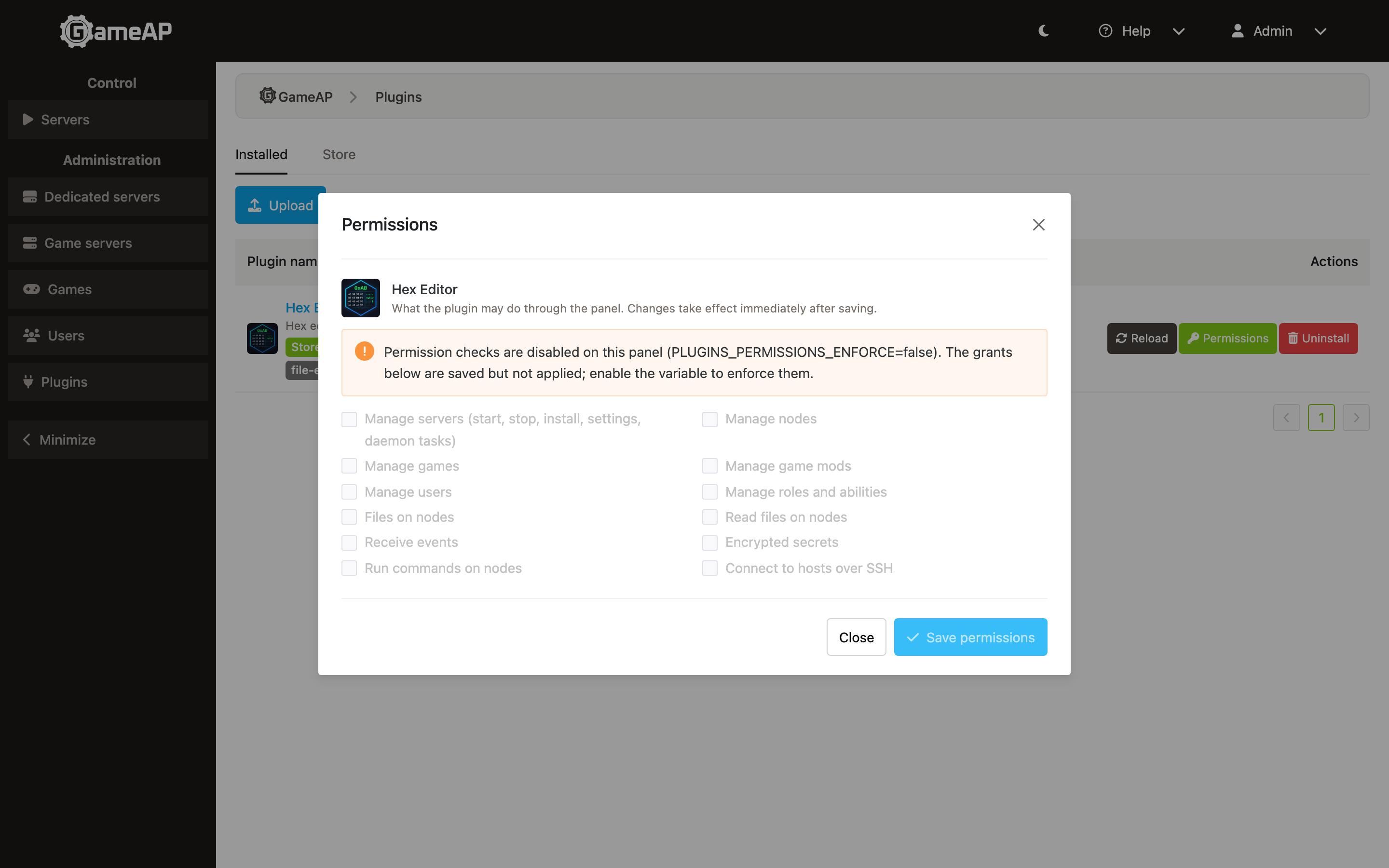
In 4.5.0 the default is
PLUGINS_PERMISSIONS_ENFORCE=false— a compatibility mode, not a safe setting: grants are recorded, shown and editable, but every check passes, so every host call a plugin makes is ungated and event delivery and file references work without grants; the Permissions dialog warns about it. SetPLUGINS_PERMISSIONS_ENFORCE=truebefore installing plugins you do not fully trust, and record the grants your plugins need now — enforcement is planned to become the default in a future release. Independently of this setting, themanage_nodescheck inside the nodes host library is always applied, SSH additionally requiresPLUGINS_SSH_ENABLED=true, and rate limits and the node path policy (PLUGINS_NODEFS_PATH_POLICY) are always in force.
Server abilities registered by a plugin
Separately from its own grants, a plugin can register game server permissions of the form plugin:{id}:{ability}, for example plugin:ezvdsxmlu6fbk:manage. These permissions appear in the game server permission list alongside the built-in ones and are granted to users in the usual way (configuring a user’s permissions for a server). Administrators receive all plugin permissions automatically.
Based on these permissions, a plugin hides or shows interface elements (for example, a tab on the game server page), and it can check them itself through gameap-authz inside its handlers. They do not gate the plugin’s HTTP routes: access to a route is controlled separately, by its own requires_auth and admin_only flags.
Panel environment variables
The plugin subsystem is configured with 78 PLUGINS_* variables; the full list with defaults is in the config.env reference. The ones an operator needs most often:
| Variable | Default | Description |
|---|---|---|
PLUGINS_DISABLED |
false |
Completely disables the plugin system: plugins are not loaded, and plugin frontends and routes are not registered |
PLUGINS_AUTOLOAD |
— | A comma-separated list of .wasm file names to register and load automatically when the panel starts |
PLUGINS_STRICT_LOAD |
false |
Refuse to start the panel when any plugin fails to load (by default such a plugin gets the error status and is skipped) |
PLUGINS_STORE_URL |
https://plugins.gameap.dev/api |
Plugin catalog API address |
PLUGINS_STORE_LICENSE_KEY |
— | License key for downloading paid plugins from the catalog |
PLUGINS_PERMISSIONS_ENFORCE |
false |
Apply the recorded permission grants |
PLUGINS_RECOVERY_ENABLED |
true |
Automatically reload plugins disabled at runtime (PLUGINS_RECOVERY_INITIAL_DELAY=30s, PLUGINS_RECOVERY_MAX_DELAY=10m, PLUGINS_RECOVERY_MAX_ATTEMPTS=5) |
PLUGINS_SSH_ENABLED |
false |
Allow plugins with the ssh grant to open SSH connections from the panel |
PLUGINS_HTTP_ALLOWED_SCHEMES |
https |
Allowed URL schemes for outbound plugin HTTP requests |
PLUGINS_HTTP_BLOCK_PRIVATE_IPS |
true |
Blocks plugin requests to private, loopback, link-local and cloud metadata addresses (SSRF protection); metadata addresses stay blocked even when set to false |
PLUGINS_HTTP_ALLOWED_HOSTS |
— | Hosts exempt from the private-IP block; cloud metadata addresses are never exempted |
PLUGINS_HTTP_MAX_REDIRECTS |
5 |
Maximum number of redirects in one outbound plugin request; every redirect target is re-checked |
PLUGINS_HTTP_MAX_TIMEOUT |
30s |
Upper limit of the timeout a plugin may request for an outbound HTTP request |
Before 4.5.0 most of these variables used the
PLUGIN_prefix (for examplePLUGIN_STORE_URL), and the compiled-module cache was configured withPLUGINS_CACHE_ENABLED/PLUGINS_CACHE_DIR(nowPLUGINS_RUNTIME_CACHE_ENABLED/PLUGINS_RUNTIME_CACHE_DIR). The old names are still accepted and log a deprecation warning at startup; if both the old and the new name are set, the new one wins. The timeout in the table above is the exception: before 4.5.0 it wasPLUGIN_HTTP_MAX_TIMEOUT_SECONDSand took a plain number of seconds, and the panel carries no compatibility entry for that name — it is silently ignored, and the default applies.gameapctl panel upgraderewrites it (converting30to30s); in a Docker or a manual installation setPLUGINS_HTTP_MAX_TIMEOUTby hand. The move to 4.5.0 is described in Upgrade.
Manual installation through the file system
A plugin can be installed without the interface: copy the .wasm file into the panel’s plugins/ directory, add the file name to the PLUGINS_AUTOLOAD environment variable (names separated by commas) and restart the panel — the plugin will be registered and loaded at startup and granted the recognised permissions declared in its manifest. A plugin listed in PLUGINS_AUTOLOAD is set back to the active status on every start, whatever its previous status.
A plugin that fails to load at startup (missing file, compilation error, Initialize failure) is recorded with the error status and the reason; the remaining plugins keep loading and the panel starts. Plugins in the active and error statuses are attempted on every start. Set PLUGINS_STRICT_LOAD=true to make the panel refuse to start instead.