
Hytale
Hytale is a sandbox game developed by Hypixel Studios. The overall pixel style and gameplay mechanics are similar to Minecraft, with more advanced character animations and effects.
The game features many biomes, mobs, and items, as well as mod support.
Setting Up the Environment
With GameAP, you can easily create, manage, and configure a Hytale game server.
First, you need to install GameAP:
Installing GameAP Daemon
GameAP Daemon is an agent responsible for managing game servers on dedicated machines. It can be installed either on the same machine running GameAP or on a separate machine.
When installing GameAP, you can choose a full installation of the panel together with the Daemon using the --with-daemon flag.
Installing Hytale Server in GameAP
Navigate to Administration → Game servers → Create
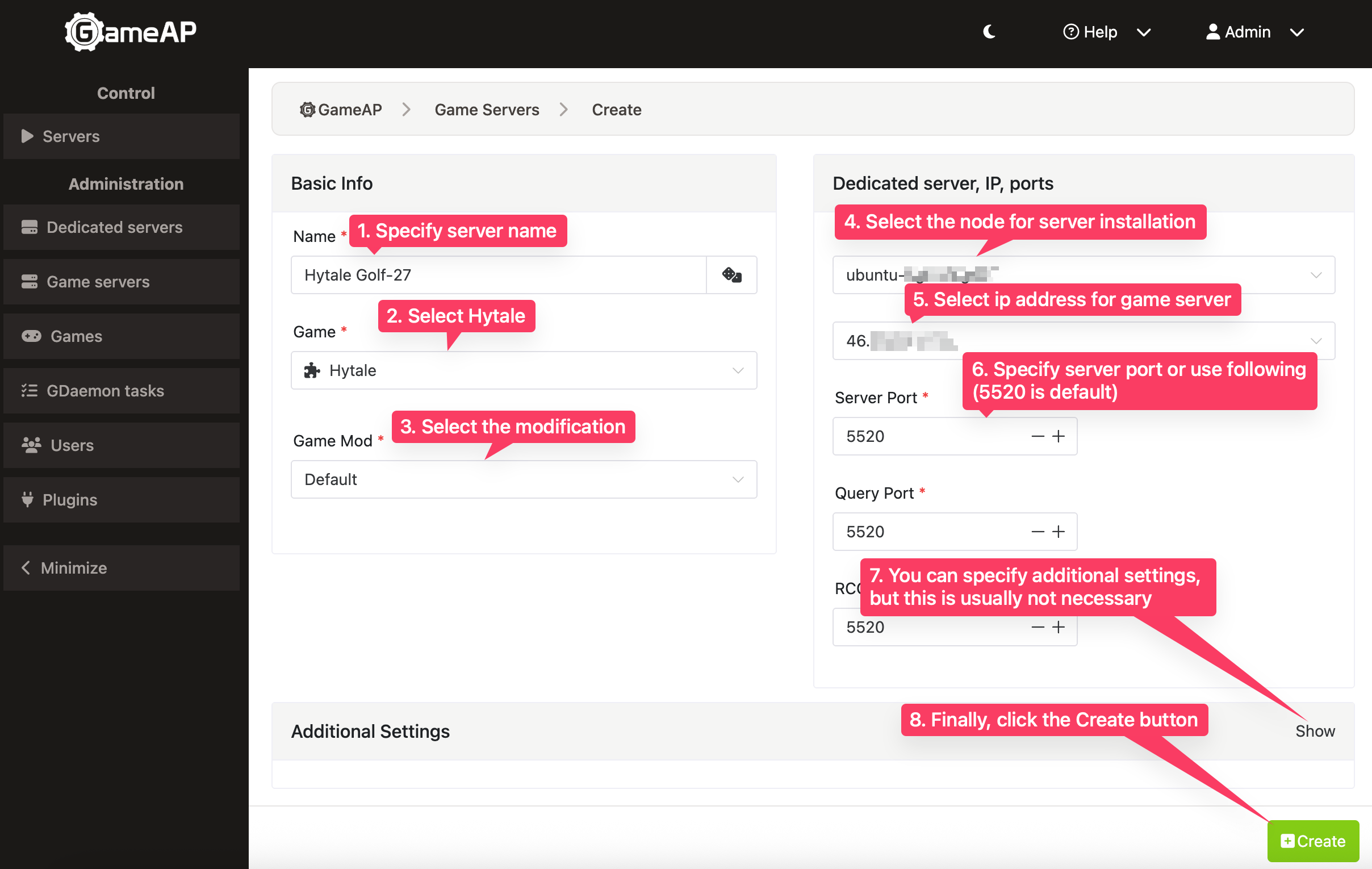
- In the “Name” field, enter any name for your server.
- In the “Game” field, select the Hytale option.
- In the “Game Mod” field, leave “Default”; it is selected automatically.
- In the “Dedicated Server” field, select the desired node where the game server will be hosted.
- In the IP field, select the desired address for your server, then you can choose an available port or use the suggested one; the default Hytale port is 5520.
- The query and RCON ports are filled in automatically, you don’t need to enter them.
Configuration After First Launch
After the first launch, you need to complete several authorization steps.
Authorizing the Game Server File Downloader
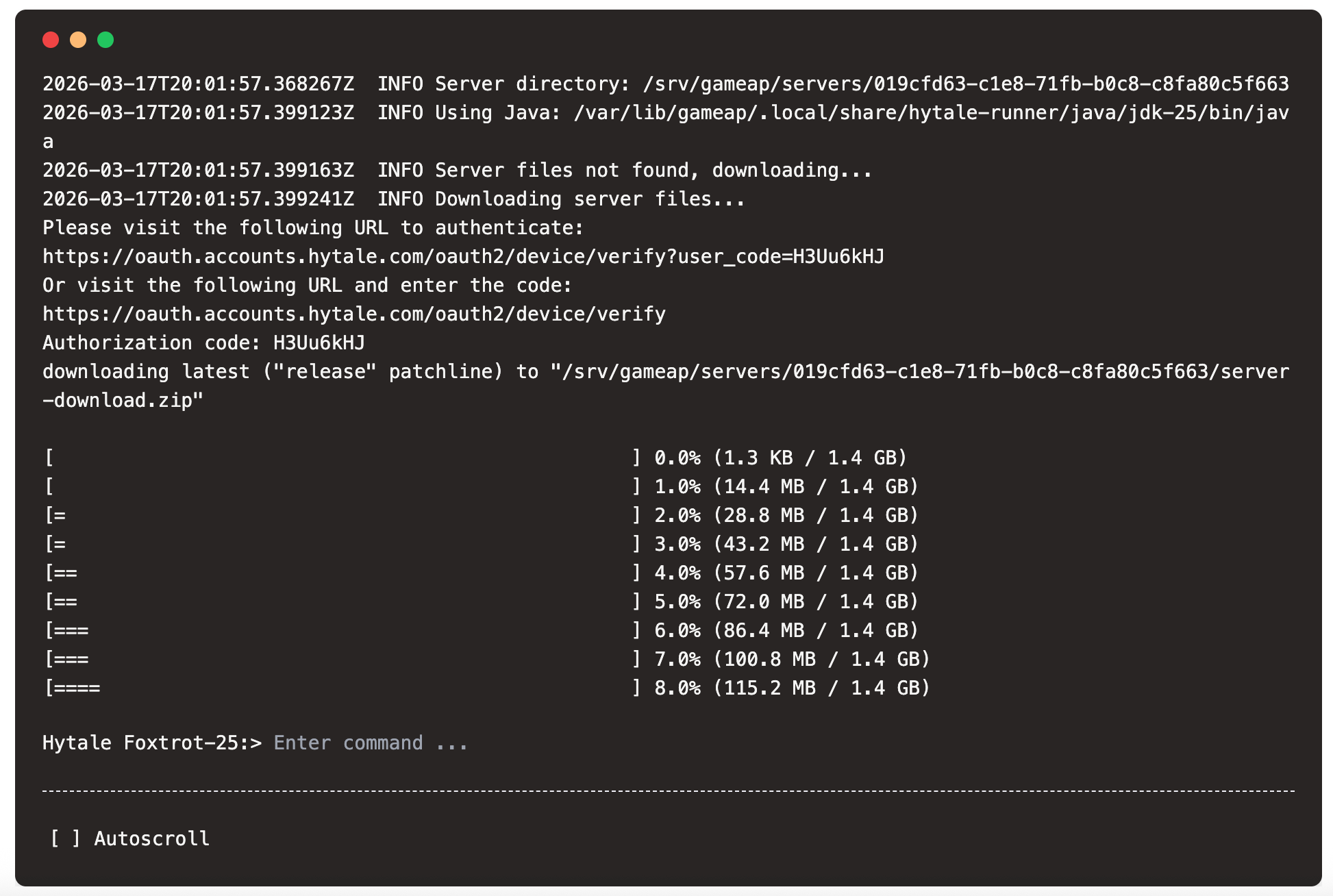
After the first launch, you need to authorize the device running the game server. In the game server console, find the line with the authorization link, copy it, and open it in your browser.
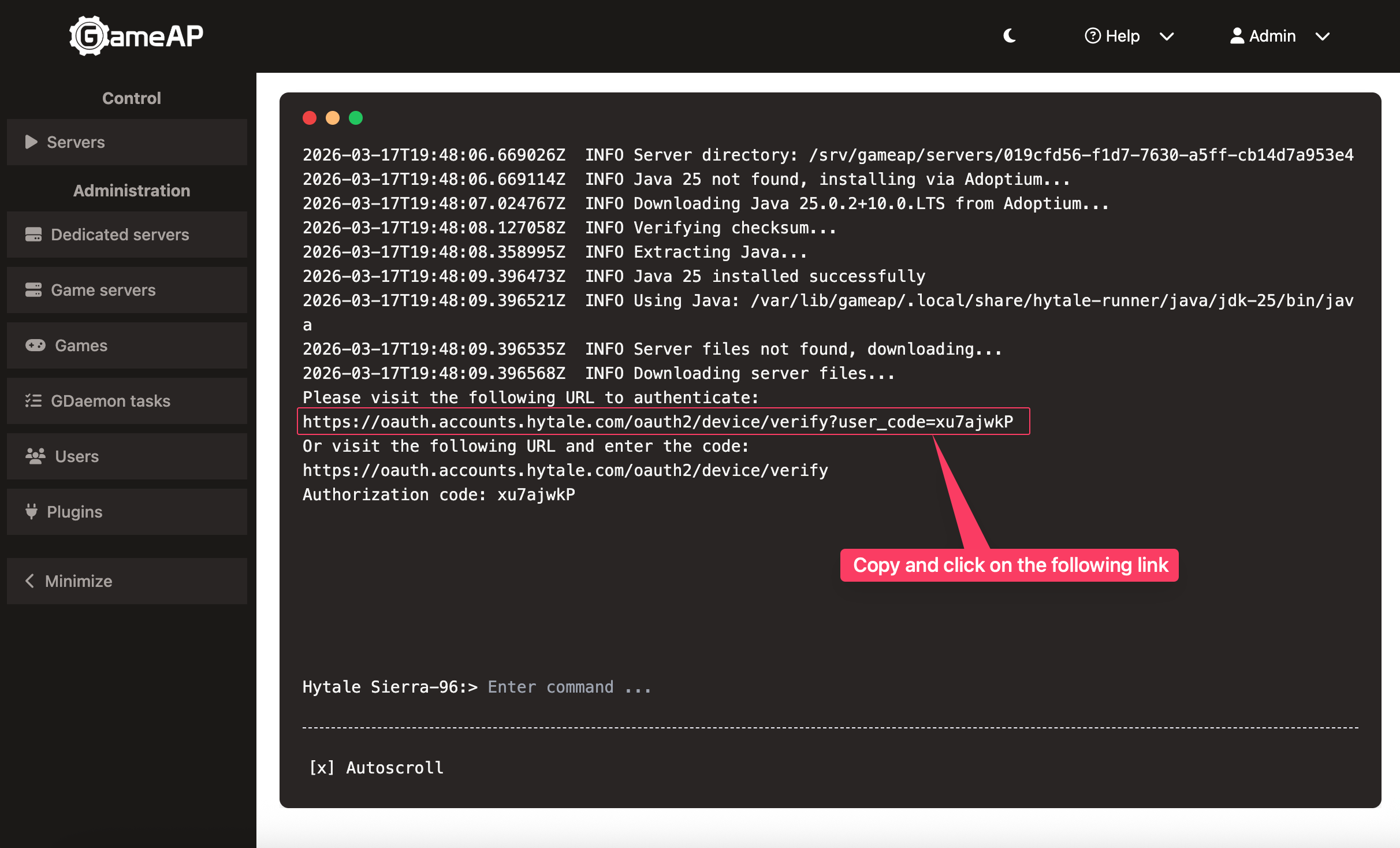
Note! To download the game server files, you must own the game. If you don’t own the game, you will see the message “error fetching manifest: could not get signed URL for manifest: could not get signed URL: HTTP status: 403 Forbidden”
During the authorization process on the developer’s website, you will need to enter a code that will be sent to your email.
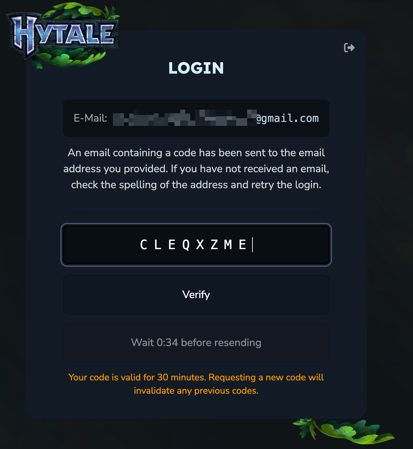
After entering the code, click “Verify”. Then, in the popup window, click “Approve” to grant access to your account.
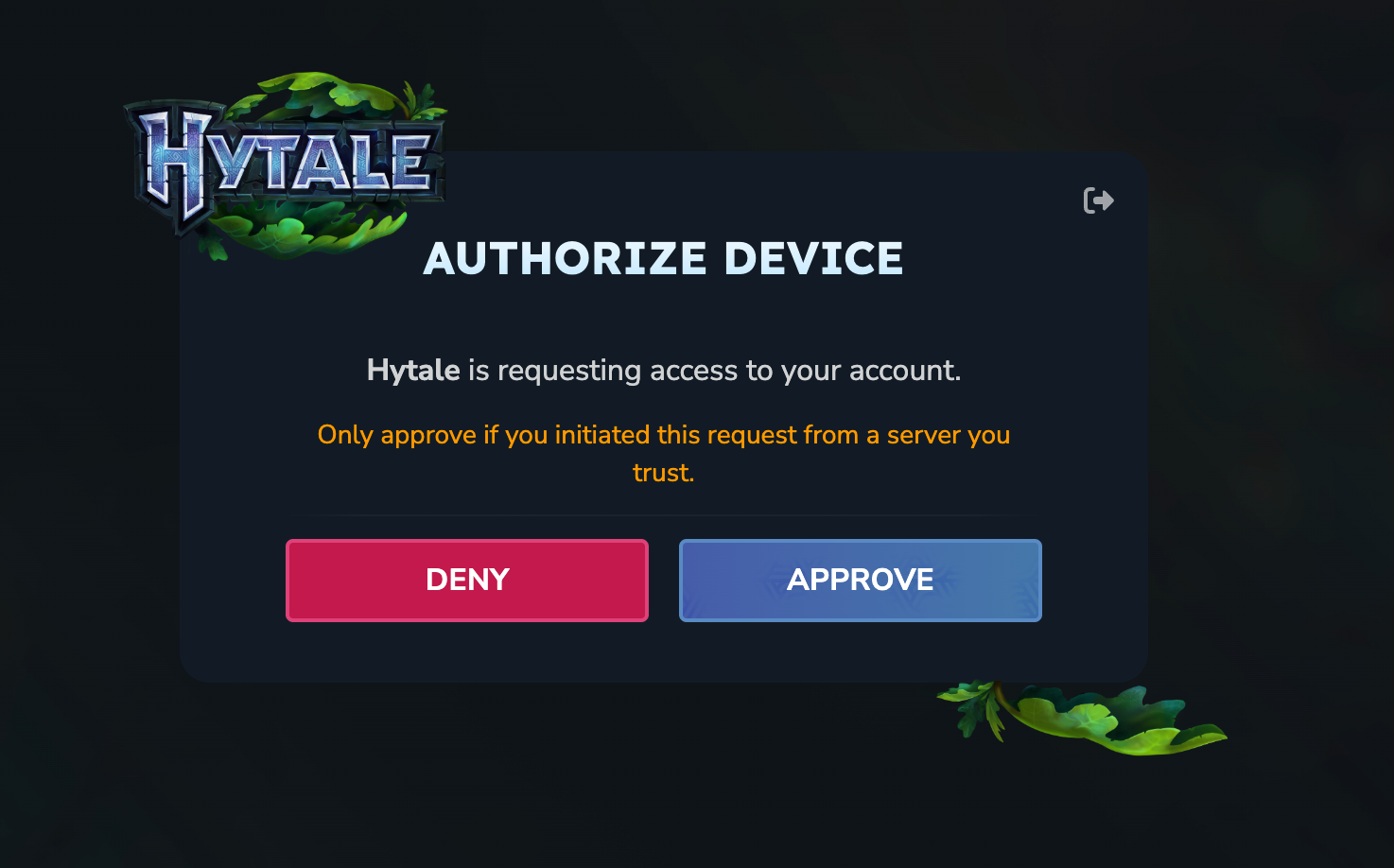
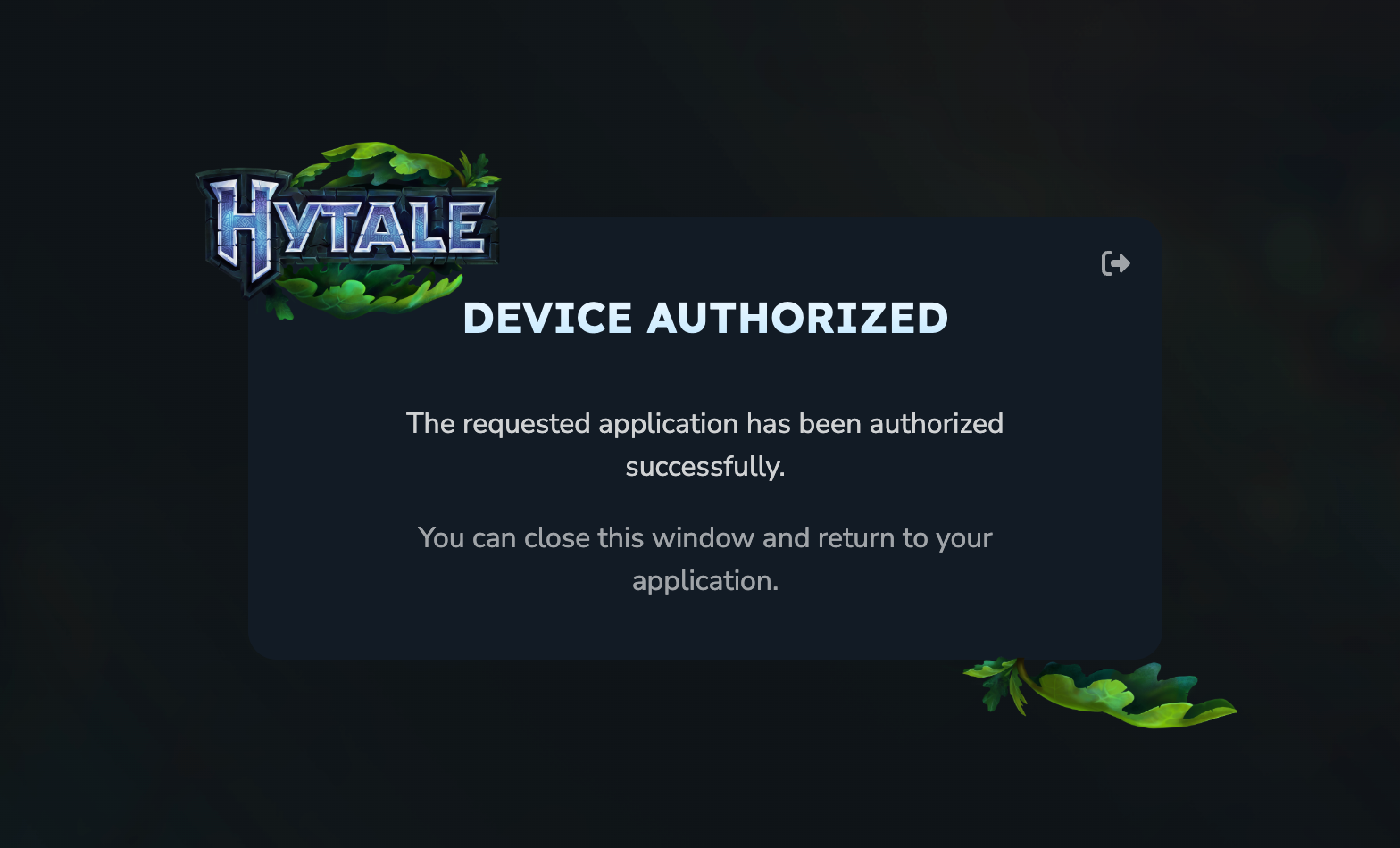
After this, you will see a message that the device has been authorized.
The game server files will start downloading. This may take some time depending on your internet connection speed.
Authorizing the Game Server
After the game server files have been downloaded, you need to authorize the game server itself.
To do this, enter the command /auth login device in the game server console.
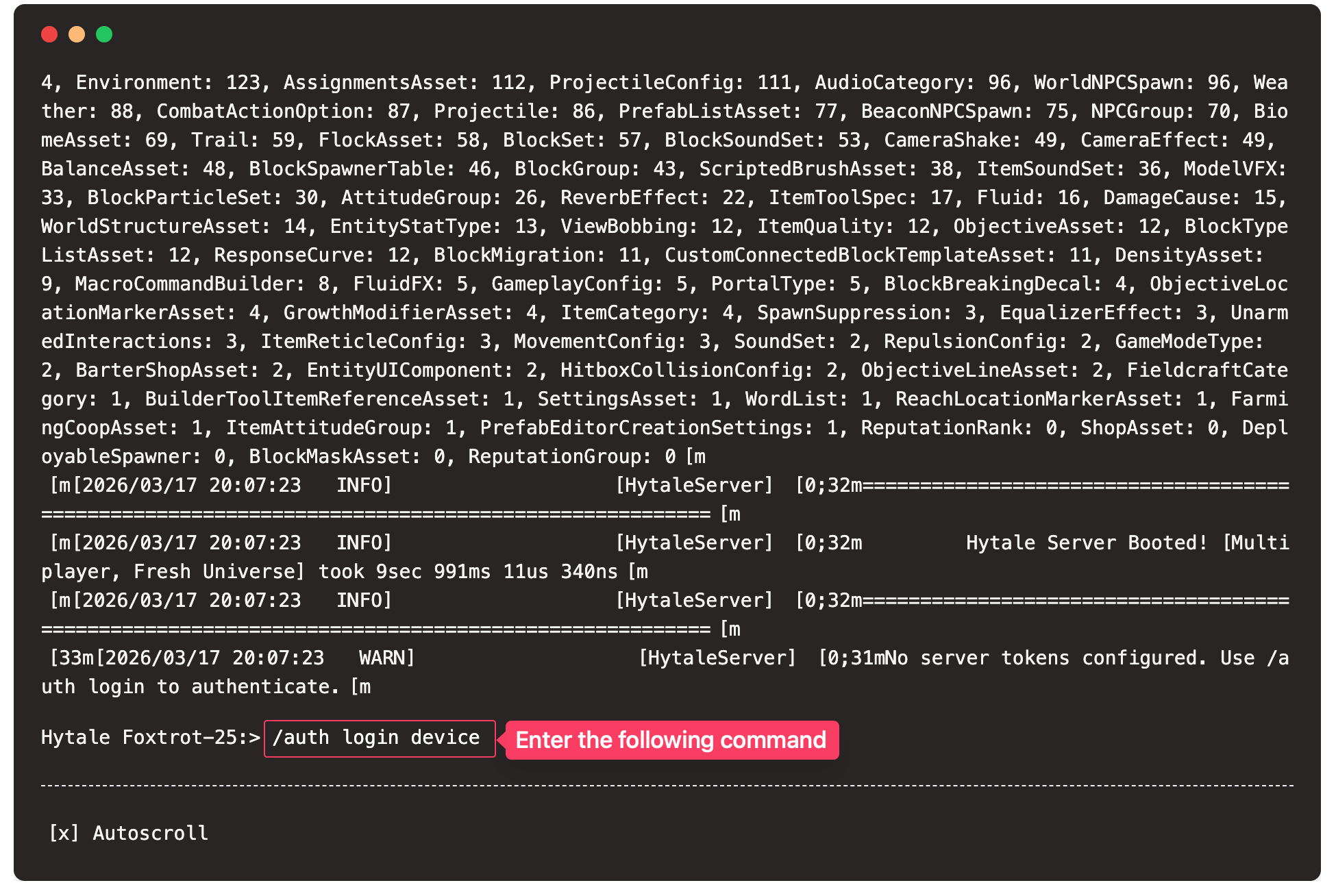
After this, a line with an authorization link will appear in the game server console, similar to the file downloader authorization process. Copy the link and open it in your browser, then repeat the same steps as with the file downloader authorization.
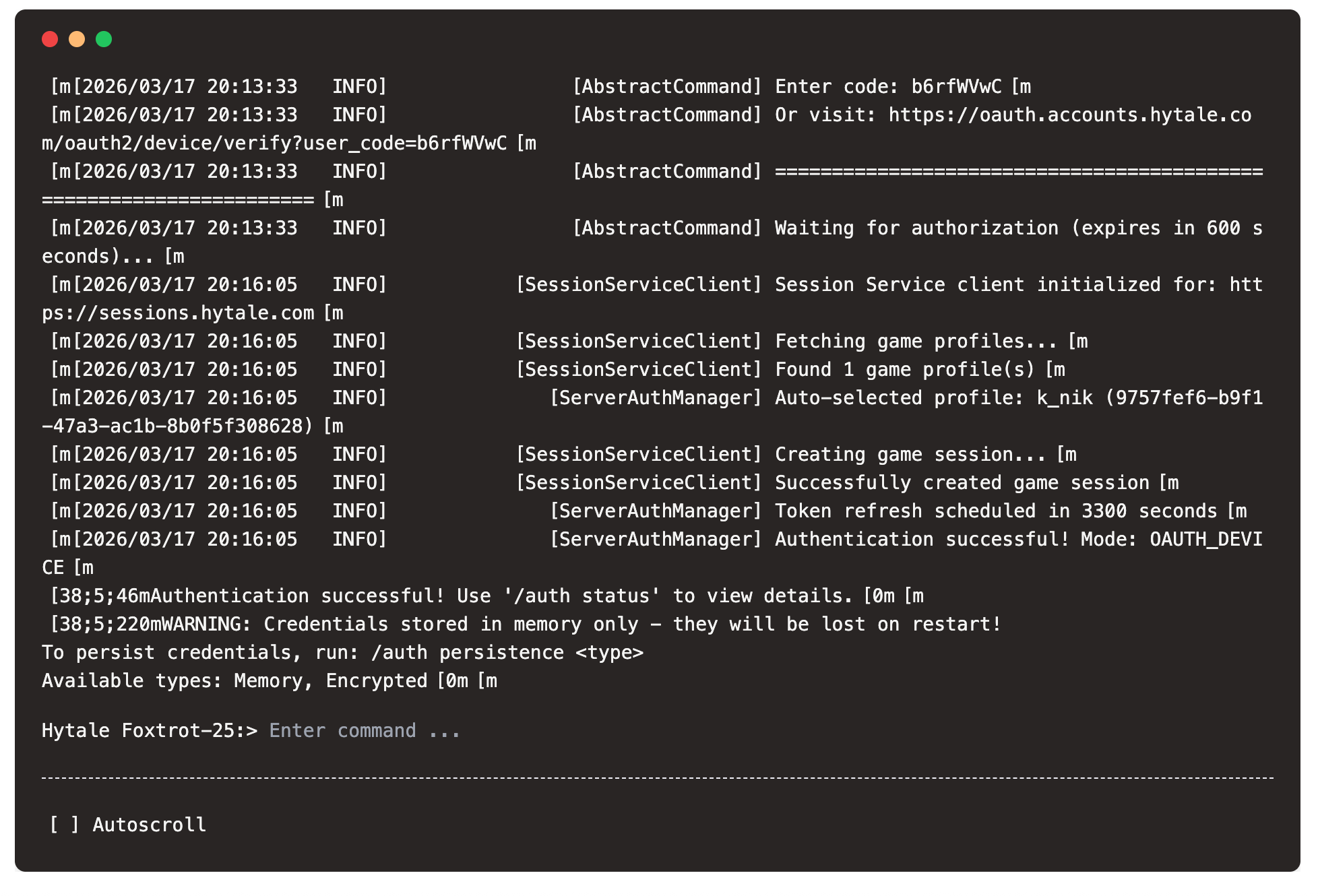
If successful, you will see a message in the game server console that authorization was successful (Authentication successful! Mode: OAUTH_DEVICE)
Automatic Authorization on Each Startup
By default, after authorization, you will need to enter the /auth login device command
to authorize the game server on each startup. You will see this message:
WARNING: Credentials stored in memory only - they will be lost on restart!
To persist credentials, run: /auth persistence <type>
Available types: Memory, Encrypted
To avoid entering the authorization command every time, enable credential persistence by running the command:
/auth persistence Encrypted
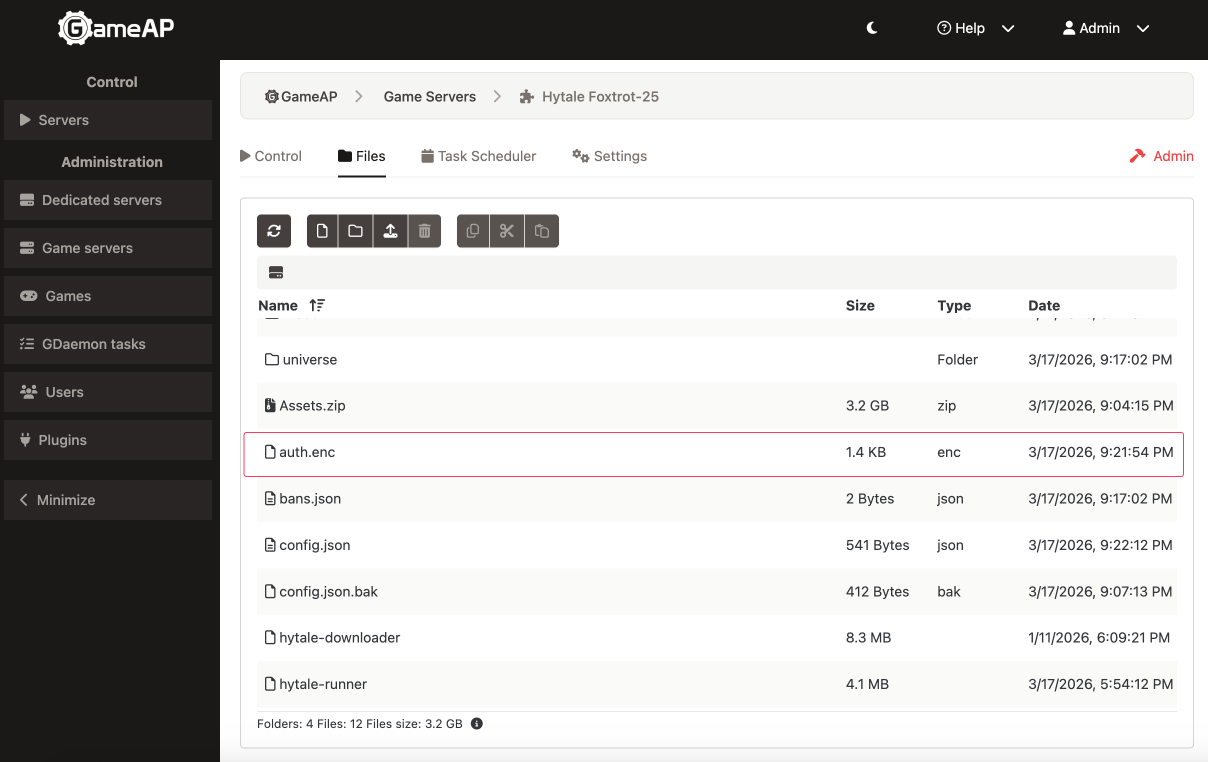
After this, an auth.enc file will appear in the game server root directory,
which will store the encrypted authorization data.
Game Server Settings
Settings in the Panel
The Settings tab of the game server contains one Hytale-specific field, “Memory. Max heap size (Xmx)” — the maximum Java heap size, 4G by default.
File-Based Settings
Most Hytale game server and world settings are configured through configuration files.
| Path | Description |
|---|---|
| .cache/ | Game server cache |
| logs/ | Game server logs |
| mods/ | Installed mods |
| universe/ | World files and player data |
| bans.json | Banned players |
| config.json | Main game server settings |
| permissions.json | Permission settings |
| whitelist.json | Whitelist |
The main settings are located in the config.json file.
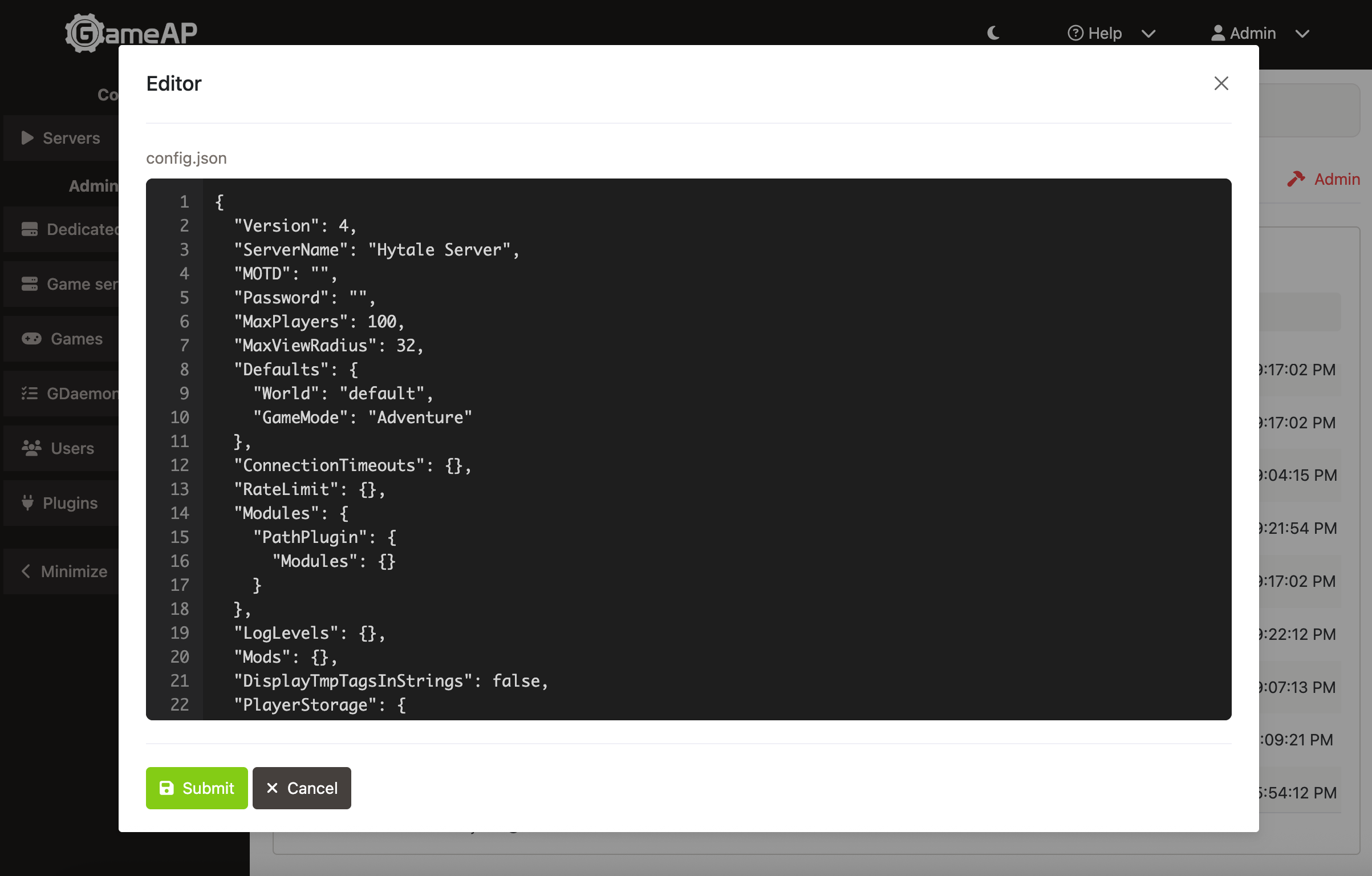
Here you can configure the following parameters:
ServerName— your server name that will be displayed in the server list.MaxPlayers— the maximum number of players that can be on the server at the same time.ServerPassword— password for accessing your server if you want to make it private.MaxViewRadius— the maximum distance at which players can see objects in the world. Setting too high a value may negatively affect server performance. View distance is the main factor affecting RAM usage.MOTD— message of the day that will be displayed to players when connecting to the server.
World settings and data are located in the universe/worlds/ directory, which contains world folders.
Each world folder has a config.json file with world settings, for example universe/worlds/default/config.json:
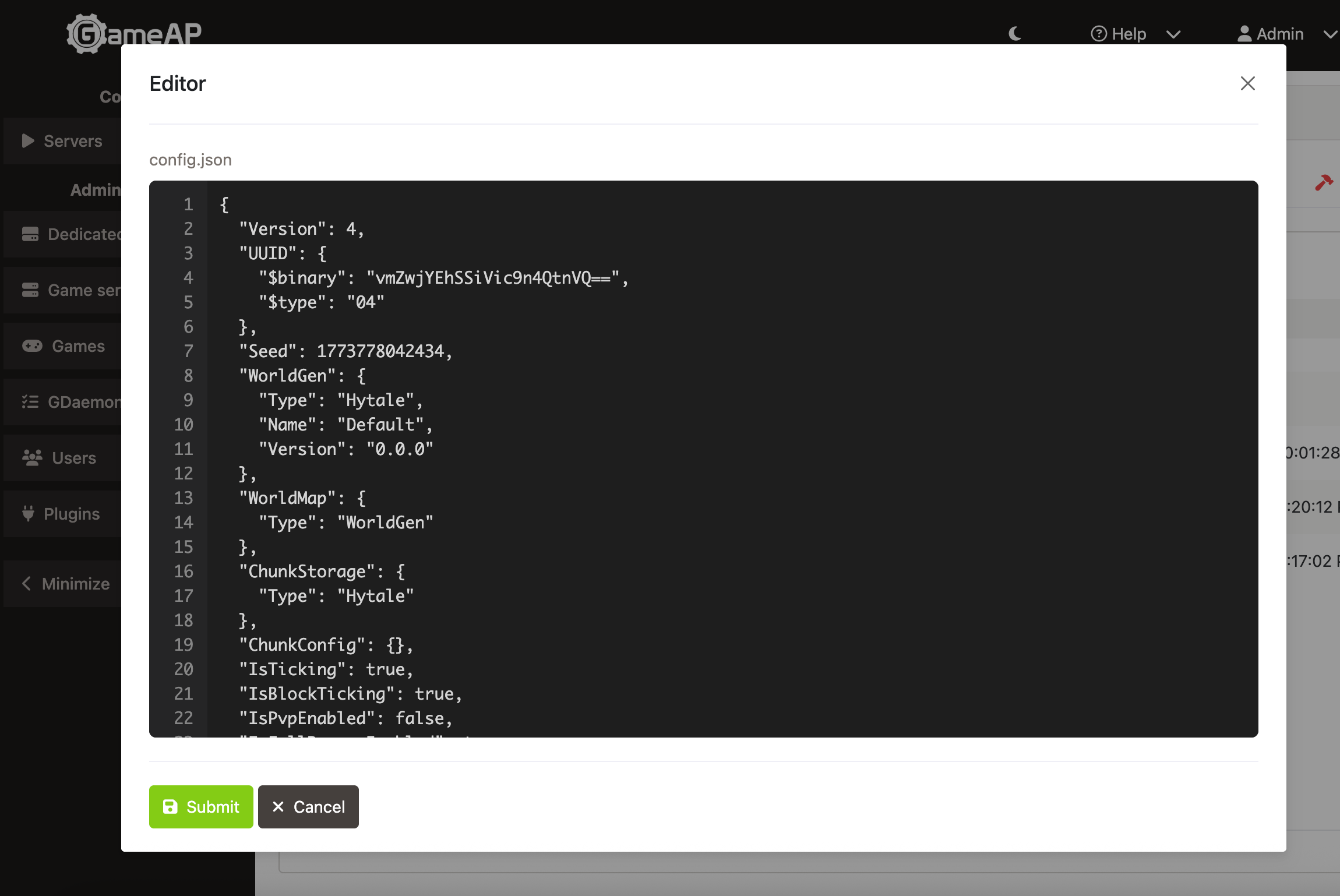
Here you can configure the Seed (world generation seed), various generation parameters, chunk settings, NPC, PVP, and other parameters.