
Troubleshooting
This page describes some possible errors and how to fix them.
Where to Start
Check the versions first — many problems are already fixed in a newer release:
gameap versionon the panel host printsGameAP <version>andBuild date: …;gameap-daemon versionon the dedicated server prints the daemon version, build date, OS and architecture;- as an administrator, look at the versions block on the panel home page: it shows the running panel version, the latest available releases, and how many daemons are outdated. The version of a particular daemon is printed on its card in Administration → Dedicated servers, and in the GameAP Daemon version field of the details window that opens when the card is clicked.
How to update is described on the Upgrade page.
For almost any game server problem, details can be found in two places.
Tasks in the panel. Administration → Dedicated servers → the GDaemon Tasks
button; open the latest task — it contains the command’s result and the error output. The same
button in the dedicated server’s details window (click the card) opens the list filtered by that
server. The page address has not changed: /admin/gdaemon_tasks.
The daemon log on the dedicated server:
- Linux —
/var/log/gameap-daemon/output.log - Windows —
C:\gameap\daemon\logs\output.log
If the daemon runs under systemd, the same output is available with:
journalctl -u gameap-daemon -n 200 --no-pager
For more detail, set log_level: debug in the daemon configuration and restart it.
Server Startup Errors
Server status is displayed incorrectly
Sometimes the server starts, but the panel shows it as offline. See Server Status Display Errors.
Empty server start command
This error occurs when the start command for the game server is empty.
Go to the game server administration page: Administration → Game servers → select the game server. Or from the main page: Servers list → select the server → Control → Administration.
Find the Game server start command field and enter the command. For Counter-Strike 1.6 it will be something like this:
./hlds_run -game cstrike +ip {ip} +port {port} +map {default_map} +maxplayers {maxplayers} +sys_ticrate {fps}
See game server configuration for details. The default start command can be set in the mod settings.
The information modal window does not change for a long time
A start usually takes less than 10 seconds. If the progress bar is frozen or the status does not change for several minutes, check whether the daemon is running and connected to the panel:
systemctl status gameap-daemon
If the daemon is not running:
systemctl start gameap-daemon
If it is running, check the log to see whether the connection to the panel is established. The
messages gRPC connection failed and Reconnecting to panel... mean the daemon could not reach
the panel — see The daemon does not connect to the panel.
Server start task is already exists
This error occurs when a start task has already been created and has not been executed yet.
Open the task list: Administration → Dedicated servers → GDaemon Tasks. Find the task in the waiting status, open it with the View button, and click Cancel. Then start the server again.
If tasks regularly get stuck waiting, the daemon is not picking them up — check that it is running and connected to the panel.
Server Status Display Errors
Time mismatch
The problem is caused by a time difference between the panel server and the dedicated server.
Set up clock synchronization on both servers:
timedatectl set-ntp true
timedatectl status
If systemd is not used, enable a time synchronization service such as chronyd or ntpd.
Check the time zone separately: it does not affect clock accuracy, but because of it the time
in the interface may be shown with an offset. Substitute your own zone for Region/City —
timedatectl list-timezones prints the available names.
timedatectl set-timezone Region/City
On Debian and Ubuntu the time zone can also be selected in a dialog: dpkg-reconfigure tzdata.
The daemon is connected, but the status is not updating
The daemon reports server state every metrics.collection_interval (5 seconds by default) and
sends a heartbeat every 30 seconds. If the data stays stale longer than that, check the daemon
log for connection drops.
Server Installation Errors
To find the cause, look at the result of the installation command: Administration → Dedicated servers → GDaemon Tasks → find the installation task and open it.
Common causes:
No source
The panel does not know where to install the game server from. There are several ways:
- via SteamCMD — the Steam APP ID must be set in the game settings;
- from a remote repository — a link to a ZIP or TAR archive must be provided (RAR is not supported);
- from a local repository — a path to a directory with files or to a ZIP or TAR archive. The files must be located on the dedicated server where the daemon runs.
The source is set on the Administration → Games page → select the game → Edit.
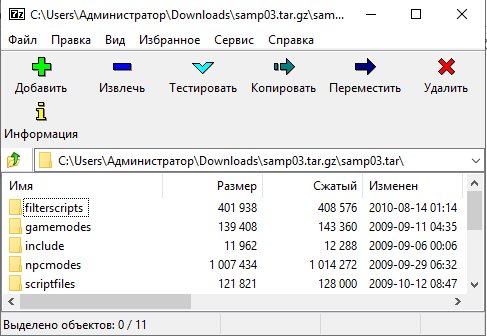
Incorrectly formed installation archive
The archive must contain the game server files at its root. The most common mistake is files sitting in a nested directory.
An incorrectly formed archive for GTA: San Andreas Multiplayer:
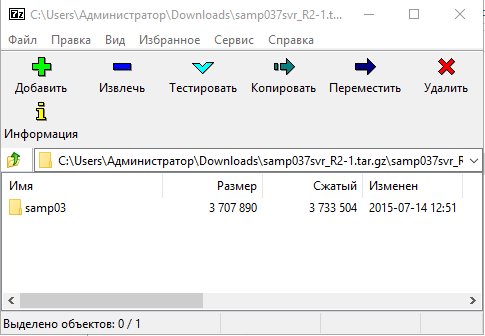
Correct:
Incorrect installation source
For a local repository, check that the directory exists on the dedicated server where the daemon runs.
For a remote one, check that the link actually starts a file download. Links to Yandex Disk, Google Drive, and similar storage services are not supported: they serve a page, not a file.
Failed to install via steamcmd
Sometimes SteamCMD aborts in the middle of a download. The panel can work with the alternative depot downloader — replace the SteamCMD script:
cd /srv/gameap/steamcmd
mv steamcmd.sh steamcmd.sh.orig
curl -O https://raw.githubusercontent.com/gameap/steamcmd-depotdownloader/main/steamcmd.sh
chmod 755 steamcmd.sh && chown gameap:gameap steamcmd.sh
Steam account login required
Some games cannot be downloaded anonymously — an account with a purchased copy is needed.
Specify it in the steam_config section of the daemon configuration, see
GameAP Daemon.
Two-factor authentication must be disabled on this account, otherwise the daemon will not be able to log in.
GameAP Daemon Errors
The daemon does not connect to the panel
In GameAP 4 the connection is established by the daemon: it connects to the panel itself over gRPC on port 31718. The panel does not connect to the daemon, and no inbound ports on the dedicated server are needed for this.
The telltale sign in the daemon log is repeated gRPC connection failed and
Reconnecting to panel... messages.
What to check:
-
Port reachability from the dedicated server:
nc -zv panel.example.com 31718If the connection cannot be established, the port is blocked by a firewall or the panel is listening on a different address.
-
The panel address in the daemon configuration — the
grpc.addressparameter. It must point to an address reachable from the dedicated server. -
Certificate verification error. If the log contains a message about a certificate name mismatch, the daemon is connecting via an address that is not in the panel’s gRPC certificate. Set
GRPC_EXTERNAL_HOSTin the panel configuration and restart the panel — the certificate is regenerated automatically, the panel log saysCertificate SANs mismatch, regenerating. See GRPC API.Since 4.4.2 the panel warns about this in advance. While building the daemon installation command it checks the connect host against its own certificate; if the host is not covered, the panel log contains
resolved gRPC connect host is not covered by the panel gRPC TLS certificatewith thegrpc_hostfield, andGET /api/nodes/setupreturns the same warning in itswarningsarray. gameapctl checks the certificate as well when installing the daemon: it printsWARNING: the panel gRPC certificate does not cover host "<host>"and switches to an address of the same machine that the certificate does cover, or stops with an error if there is none. -
registration failed. The connection is established, but the panel rejected the registration: a wrongds_idorapi_keyin the daemon configuration. The easiest fix is to register the daemon again.
Console or file manager does not work
If servers start and stop but the console and file manager do not work, the problem is almost always the connection to the panel: control commands may have completed before a disconnect, while the console and files require a live data stream.
Check the connection as described in the section above; restart the daemon if needed:
systemctl restart gameap-daemon
A file cannot be uploaded via the file manager
The file manager always uploads in chunks of FILES_UPLOAD_CHUNK_SIZE (8 MB by default), so
the file size is not the problem: the 100 MB limit applies only to the single-request API
endpoint POST /api/file-manager/{server}/upload. The message in the upload panel points to the
cause:
| Message | Cause |
|---|---|
| Rejected by proxy (request too large) — HTTP 413 | The reverse proxy rejected a chunk (the response carries no panel JSON body). Raise client_max_body_size in nginx above FILES_UPLOAD_CHUNK_SIZE |
| Session expired, retry — HTTP 410 or 404 | The upload session outlived FILES_UPLOAD_SESSION_TTL (24 hours by default). Start the upload again |
| Checksum mismatch — HTTP 422 | The file changed on disk while it was being uploaded. Start the upload again |
The FILES_UPLOAD_ALLOW_ARCHIVES and FILES_UPLOAD_ALLOW_BINARY variables allow uploading
archives and binary files, see Security. An archive that is already on the
dedicated server can be unpacked in place with Unzip, see
File Manager.
Zip, Unzip, or Checksums do not work
Archives and checksums are handled by the daemon on the dedicated server; archive operations require GameAP Daemon 4.1.0 or newer.
| Symptom | Cause |
|---|---|
node does not support archive operations — HTTP 502 |
The daemon on this dedicated server is older than 4.1.0. Update it |
| ZIP download of a directory fails with HTTP 429 | The per-server limit on simultaneous downloads is reached (FILES_ARCHIVE_CONCURRENT_PER_SERVER, 2 by default). Wait for a running download to finish |
| ZIP download of a directory fails with HTTP 413 | The directory exceeds FILES_ARCHIVE_MAX_BYTES or FILES_ARCHIVE_MAX_FILES; the same limits apply when creating and unpacking archives |
archive is encrypted, password required |
The archive is password-protected; such archives cannot be unpacked |
| The operation starts, but its progress is not updating | Progress arrives over the /api/ws/servers/{server}/file-manager/archive-operations WebSocket, which the browser could not open — check WebSocket forwarding on the reverse proxy, see WebSocket and Metrics |
The limits are described in the config.env Reference.
The daemon does not start after a server reboot
Enable autostart:
systemctl enable gameap-daemon
Task complete with an error
A generic error during game server installation, start, restart, or stop. There can be many causes.
Open Administration → Dedicated servers → GDaemon Tasks, find the latest task, and look at the details. Then check the daemon log.
No source to install game
No installation source is set for the game. See No source.
Panel Login Errors
An administrator cannot log in after an upgrade
In GameAP 4, two-factor authentication is mandatory for administrators: 30 days after the first reminder, logging in stops issuing a full session. This is not an account lockout — enable 2FA and log in again.
The steps, including what to do when the device with the codes is lost, are on the Security page.
A login stopped working after upgrading to 4.5
Since 4.5.0 logins and e-mail addresses are stored in lower case and matched case-insensitively,
so the letter case you type does not matter. What breaks is a collision: if two accounts differed
only in letter case, after the upgrade only one of them keeps the lower-case identifier, and the
other can no longer sign in with it. The panel log then contains the warning
Migration 022 could not fold a user identifier with the column, user_id and
kept_by_user_id fields. An administrator has to give the second account a new login or e-mail
address on the Users, Roles, and Permissions page. Details —
Upgrade.
Too many login attempts
After 20 failed attempts from one address or 5 attempts for one login, logging in is blocked
for 15 minutes with a 429 response. The limit clears itself when the time passes.
A password is rejected when changing it
The password must be from 12 to 128 bytes long, and it is checked against the compromised password list. See Security.
Versions Block on the Home Page
The block is shown to administrators only; how it works is described on the Upgrade page.
Update check is disabled under the block means UPDATE_CHECK_ENABLED=false in config.env.
A red Failed to get information badge next to GameAP Daemon means the panel could not
compare the daemon versions: the dedicated server summary could not be loaded, no latest
GameAP Daemon release is known, or the version of at least one daemon is unknown — for example,
it is offline. A release is unknown when none of the sources in UPDATE_CHECK_URLS could be
reached: check outbound HTTPS access and proxy settings on the panel host. A request times out
after 15 seconds; a failed lookup is cached for 15 minutes, a successful one for
UPDATE_CHECK_TTL (6 hours by default). The variables are described in the
config.env Reference.
Finding the Cause
If your problem is not listed here, look for details in the logs.
Panel health check. curl http://<host>:<port>/api/health answers without authentication
and checks the database connection, so it separates a panel that is down from a database
problem. The port is HTTP_PORT (8025 by default).
The daemon log — /var/log/gameap-daemon/output.log on Linux,
C:\gameap\daemon\logs\output.log on Windows. For verbose output, set log_level: debug in
the daemon configuration and restart it.
The panel log — the output of the gameap process. Under systemd:
journalctl -u gameap -n 200 --no-pager
The verbosity level is set with the LOGGER_LEVEL variable, see the
config.env Reference.
Warnings at panel startup —
environment variable is deprecated and will be removed in a future release and
both the deprecated and the current environment variable are set, the deprecated one is ignored,
each with the deprecated and use fields — mean that config.env still contains old
PLUGIN_* variable names. Rename them as described on the
Upgrade page.
Tasks — in the panel, Administration → Dedicated servers → GDaemon Tasks: the result of every start, installation, and restart command is there.
Sending logs to support. gameapctl send-logs collects the gameapctl, daemon, panel, web
server and database logs, the service status, the installation state and system information,
uploads the archive and prints a Logs ID to pass on to support. Extra directories are attached
with --include-logs, for example --include-logs=/var/log/nginx; the flag can be repeated.